Customer Surveys
With the CSAT feature (Customer Satisfaction Score), service quality feedback can be collected automatically. Enneo includes a survey directly in the footer of outgoing responses, the customer can rate with a few clicks whether their issue has been resolved satisfactorily.
- Systematic collection of customer feedback
- Determination of satisfaction after ticket closure
- Basis for team and quality development
Requirements
- User right “Manage customer and user satisfaction surveys” is required.
Setting up the CSAT survey
-
Accessing the survey section
User Administration → Surveys → Customer Surveys
-
Choosing scale and representation
”Display customer satisfaction survey in the footer” with the options:
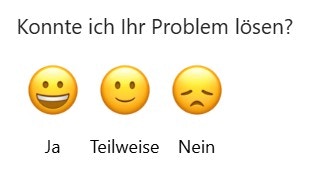
- Good / Okay / Not Good (3-scale)
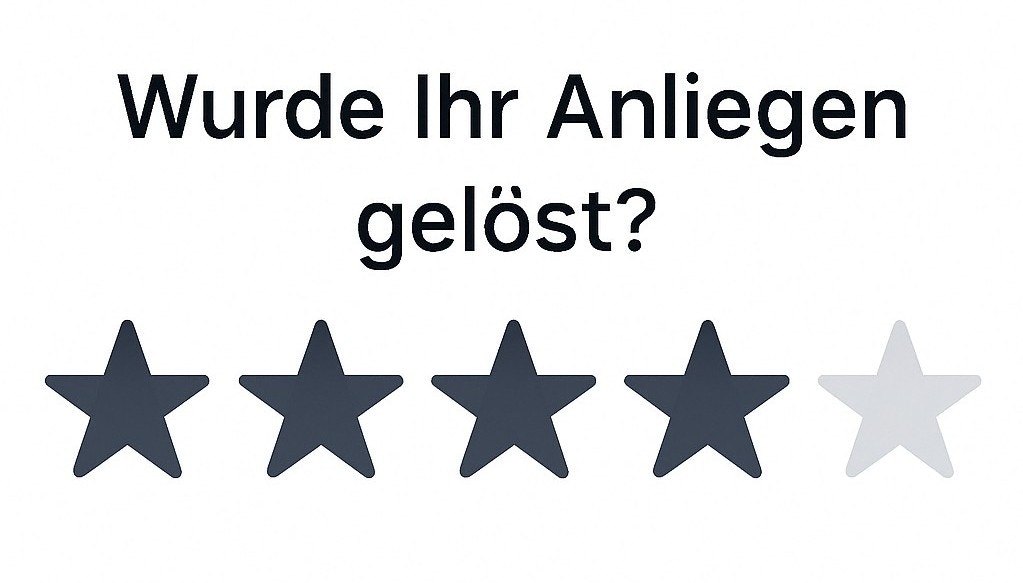
- Stars (5-scale)
- NPS (10-scale)
- Deactivated (default setting)
The chosen scale applies globally – it is used for all activated email accounts.
-
HTML Template
After selecting the scale, the template editor is displayed, in which the layout of the survey can be implemented via HTML.
Example of a 3-scale:
<p style="font-size: 14px; margin: 20px 0 10px;">
Did I solve your problem?
</p>

<div style="display: flex; gap: 20px; align-items: center;">
    <a href="{surveyUrl|3}" target="_blank" style="text-decoration: none; text-align: center; color: #000;">
        <img src="https://main.enneo.dev/icons/emojiHappy.svg" style="width: 48px; height: 48px; display: block; margin: 0 auto;" />
        <div style="font-size: 12px; margin-top: 5px;">Yes</div>
    </a>
    <a href="{surveyUrl|2}" target="_blank" style="text-decoration: none; text-align: center; color: #000;">
        <img src="https://main.enneo.dev/icons/emojiNeutral.svg" style="width: 48px; height: 48px; display: block; margin: 0 auto;" />
        <div style="font-size: 12px; margin-top: 5px;">Partially</div>
    </a>
    <a href="{surveyUrl|1}" target="_blank" style="text-decoration: none; text-align: center; color: #000;">
        <img src="https://main.enneo.dev/icons/emojiDisappointed.svg" style="width: 48px; height: 48px; display: block; margin: 0 auto;" />
        <div style="font-size: 12px; margin-top: 5px;">No</div>
    </a>
</div>
-
Activation per email account
Although the scale is set globally, it can be individually decided for each email mailbox whether the CSAT function should be active or not:
- Go to Email Accounts
- Edit the desired account
- Activate the toggle in the section “Customer Satisfaction Survey (CSAT)”
-
Testing and checking
To check the configuration, simply create an outgoing email and send it to your own email address.
This allows a direct check to see if the survey in the footer meets the expectations or needs to be adjusted.
-
Data Retrieval
The survey results can be downloaded as an .xlsx file in the Advanced Settings → Exports and Reporting Settings → "Customer Satisfaction Surveys" section.
Relevant datasets: Audience = customer
User Surveys
With the User Survey, it can be internally determined how helpful the solutions suggested by the AI-agent were in the ticket context. The survey appears after the dispatch of an answer and allows quick feedback by the ticket handler.
- Evaluation of the solution proposed by the AI-agent
- Improvement of AI-logic based on feedback from practical experience
- Uncovering potential for expanding existing AI-agents or developing new use cases
Requirements
- User right “Manage customer and user satisfaction surveys” is required.
Setting up the user survey
-
Accessing the survey section
User Administration → Surveys → User Surveys
-
Activation
- Select the option
”How satisfied were you with the AI? 1–5 Stars.” from the dropdown “Survey after ticket closure”
- By default, “No survey” is set
-
Functionality
- The survey appears after the completion of a ticket processing
- Only visible to users with ticket processing roles
- The survey contains a popup “How satisfied are you with the AI solution?”
- The rating scale ranges from 1 to 5 stars
-
Data Retrieval
The survey’s results can be downloaded as an .xlsx file in the Advanced Settings → Exports and Reporting Settings → "Customer Satisfaction Surveys" section.
Relevant datasets: Audience = user